MJO · Connect guide · Claude
How to connect an MCP server to Claude
Claude calls a remote MCP server a custom connector. You add it once, by its address, and it then works in Claude on the web, Claude Desktop and Cowork. This guide follows Anthropic's own help page, step for step.
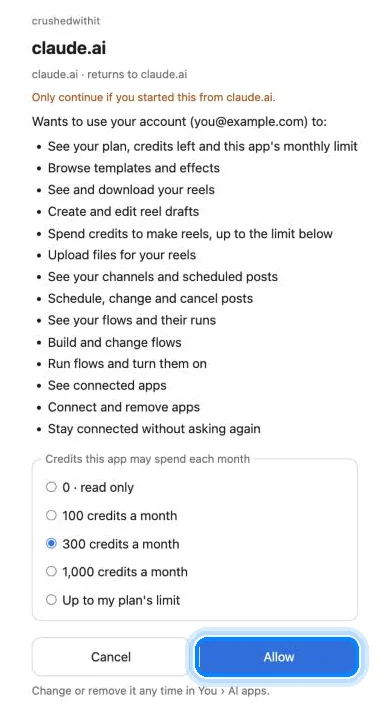
Adding the server is stage 2 of MCP Journey Optimization (Install), and the sign-in that follows is stage 3 (Authorize). If you build a server, this is the screen your users will see; if you use one, this is all you need. The comparison with every other client is in the field guide.
What you need
- A Claude account. Anthropic says custom connectors using remote MCP are available on Free, Pro, Max, Ultra, Team and Enterprise plans. Free plans are limited to one custom connector.
- The server's address, e.g. for the CrushedWithIt server,
<your server URL>. Use it exactly as the provider gives it, including any path. - A server reachable on the public internet over HTTPS on port 443. Anthropic says connections come from its cloud, not your device, and URLs with other ports are not supported.
- On Team and Enterprise: an Owner or Primary Owner must add the connector first (on Enterprise, also anyone with a custom role that includes Manage access to Libraries).
Steps: Pro, Max and other individual plans
- Go to Customize > Connectors.
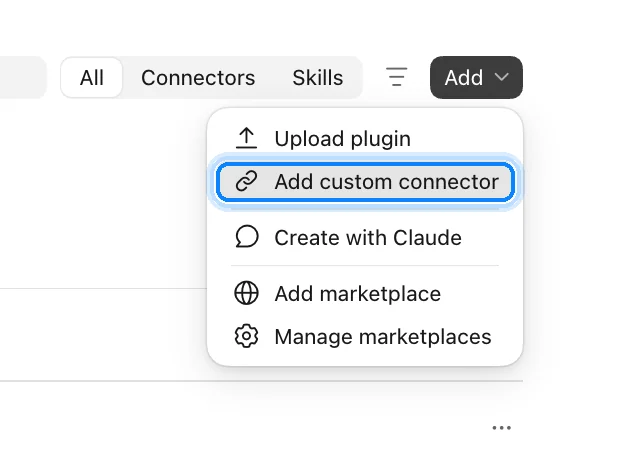
- Click + Add, then Add custom connector.
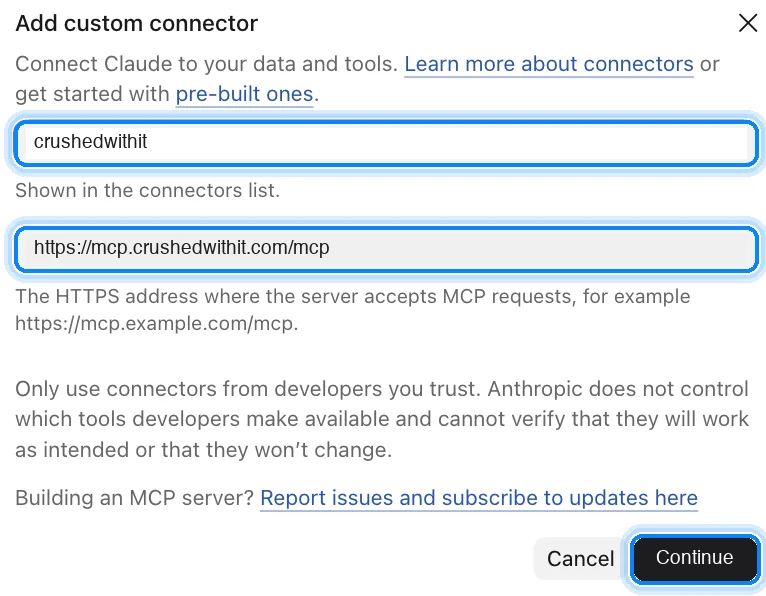
- Enter a name. This is what you will see in the connectors list, e.g. "CrushedWithIt".
- Enter the remote MCP server URL, including any path, then click Continue.
- Review the authentication settings Claude detected, change them only if the provider told you to, and click Continue.
- Under Authentication: Sign in now, Sign in when needed or No sign in.
- Under OAuth client: Use Claude's published identity (Recommended), Register automatically or Use your own OAuth client. With your own client you enter a Client ID (and Client Secret if one was issued) and register
https://claude.ai/api/mcp/auth_callbackas the redirect URL. - Under Request headers: fixed credentials such as an API key, only if the server does not use OAuth.
- Click Add. If you chose to sign in, finish the sign-in on the provider's page.
Steps: Team and Enterprise
Owners: go to Organization settings > Connectors, click Add, hover over Custom and select Web, enter the name and URL, click Continue, set Authentication, OAuth client and Request headers as above, and click Add.
Members: after an owner has added it, go to Customize > Connectors, find the connector (usually labelled "Custom") and click Connect. Each member connects individually, unless the connector uses a shared credential.
Turn it on in a chat
Click the + button at the lower left of the chat, choose Connectors, and check the toggle next to your connector. Anthropic describes the toggle as per conversation.
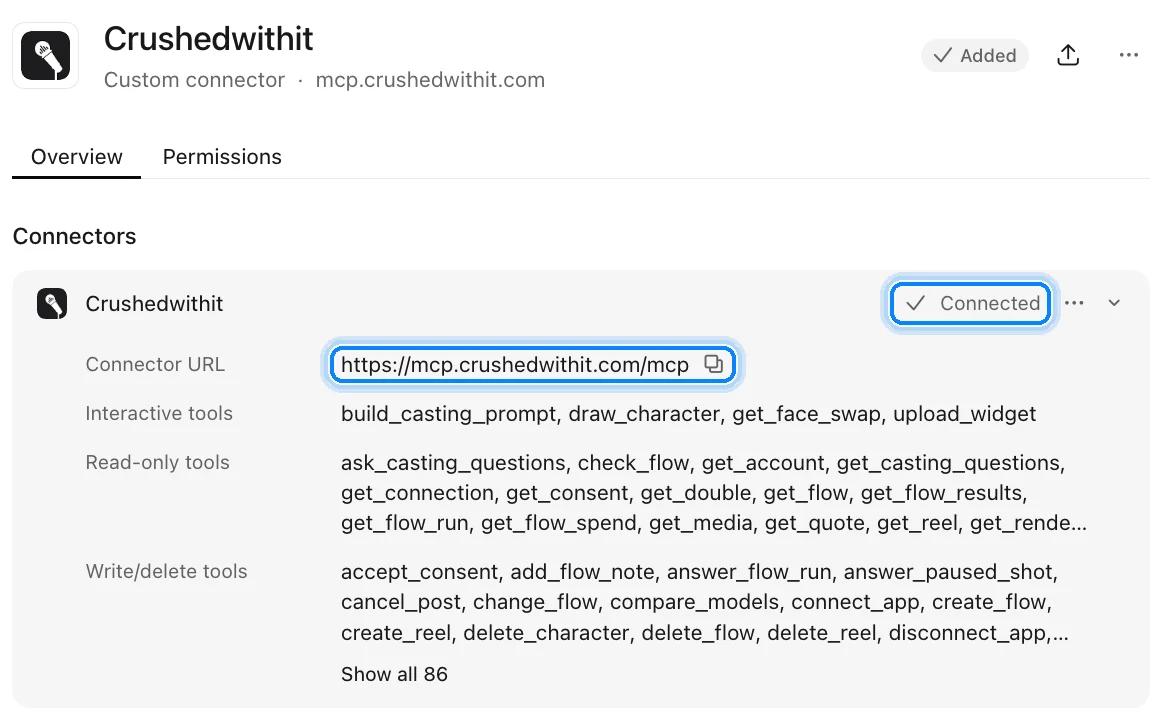
What it looks like (captured 26 Nov 2026)
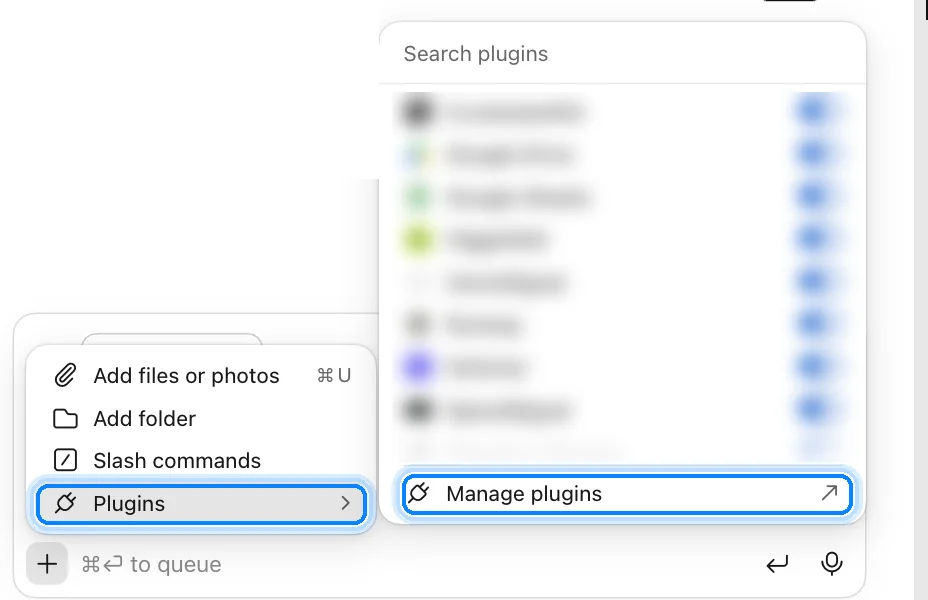
These are real screens from connecting the CrushedWithIt server to Claude on the web. Claude also lets you reach the same "Add custom connector" dialog from the chat box: + > Plugins > Manage plugins, then Add > Add custom connector. Menu names change often; the dialog is the same.
Try it
Start with a request that reads and does not spend or change anything. For the CrushedWithIt server:
Use CrushedWithIt to show my account and how many credits I can spend now.
For any other server: "List the tools you have from <connector name> and run the simplest read-only one." If Claude asks to approve the tool call, read the inputs before you approve. This is stage 4 of MJO, the first tool call.
Common errors and fixes
| What you see | Fix | Basis |
|---|---|---|
| Connection fails | Check the URL matches the provider's docs exactly and uses port 443. If the server is on a private network, behind a VPN or a firewall, it must allowlist Anthropic's published IP addresses. | Anthropic help page |
| Sign-in fails or loops | If you used your own OAuth client, check the redirect URL is registered. Confirm whether the server needs your own client or a fixed header credential. | Anthropic help page |
| Tools behave unexpectedly | Review tool approval requests, inputs and outputs; disable tools you don't need. Server behaviour can change without notice. | Anthropic help page |
| "Add" is missing on a Team plan | Only Owners and Primary Owners can add connectors on Team. Ask one to add it, then click Connect. | Anthropic help page |
A local server from claude_desktop_config.json doesn't show on claude.ai | Expected. Anthropic says local servers are a separate mechanism, not available on claude.ai or in cloud Cowork. | Anthropic help page |
Two more notes from the same page: custom connectors don't support the file transfer beta, and during Advanced Research Claude can call connector tools without further approval, so Anthropic advises disabling write-capable tools.
How to disconnect
- Go to Customize > Connectors (owners can use Organization settings > Connectors).
- Click Remove or the three-dot menu next to the connector.
- Follow the prompts.
To change a connector's details, Anthropic says to remove it and add it again.
Sources
- Anthropic: Getting started with custom connectors using remote MCP, checked 26 Nov 2026.
- For server builders: Claude connector authentication and the MCP authorization specification.
Other clients: the MCP field guide compares all ten. The framework: MCP Journey Optimization (MJO).